Douglass Crestron Use Instructions
- To control the inputs of the Douglass Ballroom projectors, sometimes the Crestron iPad app is needed. Specifically, it can be needed when setting multiple projectors to use the same input, as the walk up panels are limited to controlling each screen independently and cannot route one input to all projectors at once.
- First. Get an iPad with the Crestron app that has the Douglass Ballroom as a saved location. If you need to, when you open the app, select the Douglass Ballroom to launch the interface for that place. The app may auto-launch into that interface.
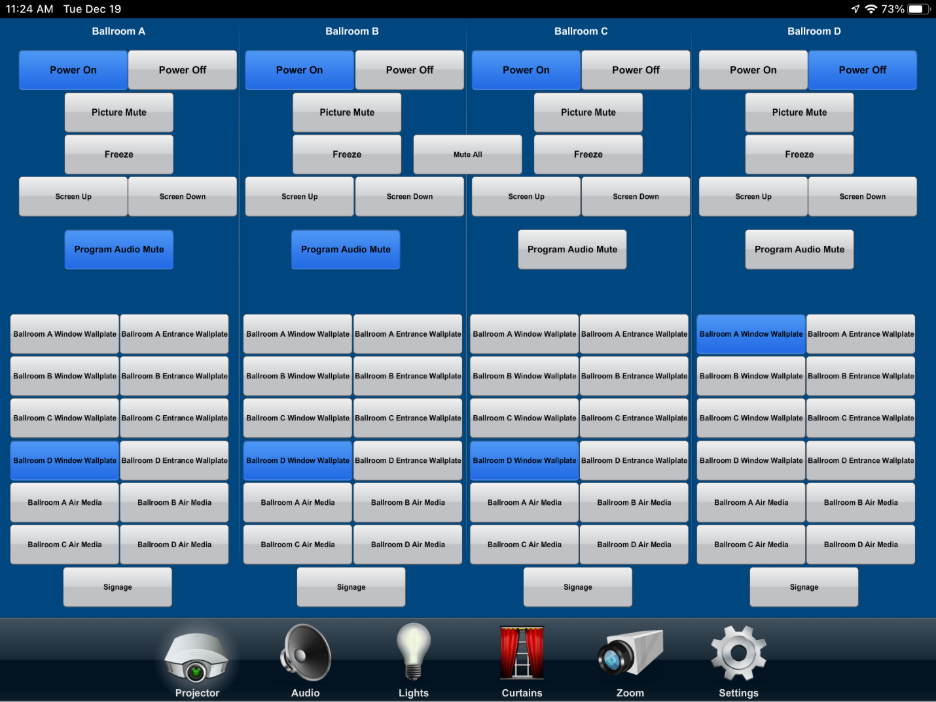
- Once you have the Douglass Crestron interface open, you can use the navigation bar at the bottom to switch what controls you can view. To set projector inputs, select the projector button in the navigation bar.
- Once in the projector tab, you will see the screen is divided into four sections, one for each projector in the ballroom. The buttons in each section refer to the projector in that labeled ballroom. If you are switching inputs for a walk-up event, the customer is either using Air Media, or the “window wallplate”. The “entrance wallplate" is not available to walk-up users, and “signage” is not useful either. If a customer is using Air Media, there is an Air Media receiver for each ballroom. The Air Media you should select is the one the customer is already using, or one of the ballroom sections they are using to project.
From this screen, you can route any input to any projector: